¶ Adding a navigation menu in Sitejet Builder
The menu is how visitors move around your website. Every template in Sitejet Builder ships with a header that contains a menu, so most of the time you just customise the one that is already there. This guide covers the two ways of populating the menu — Auto (derived from your pages) and Custom (manually controlled) — plus how to style the header, add submenus, and handle single-page sites.
¶ When you need this
- The template you picked already has a header and menu — you just want to change what it links to or how it looks
- You added a blank page and want to put a header on it
- You want to swap the existing header for a different layout
- You are building a single-page (one-pager) site and want section-anchor menu items
¶ Adding a header with menu
If you started from a template, the header is already in place — skip to the next section. Otherwise:
- Open the editor and navigate to the page that needs a header.
- In the left sidebar, click the Elements icon and open the Header category.
- Browse the available header layouts. Each includes a menu placeholder.
- Drag the layout you like to the top of the page.
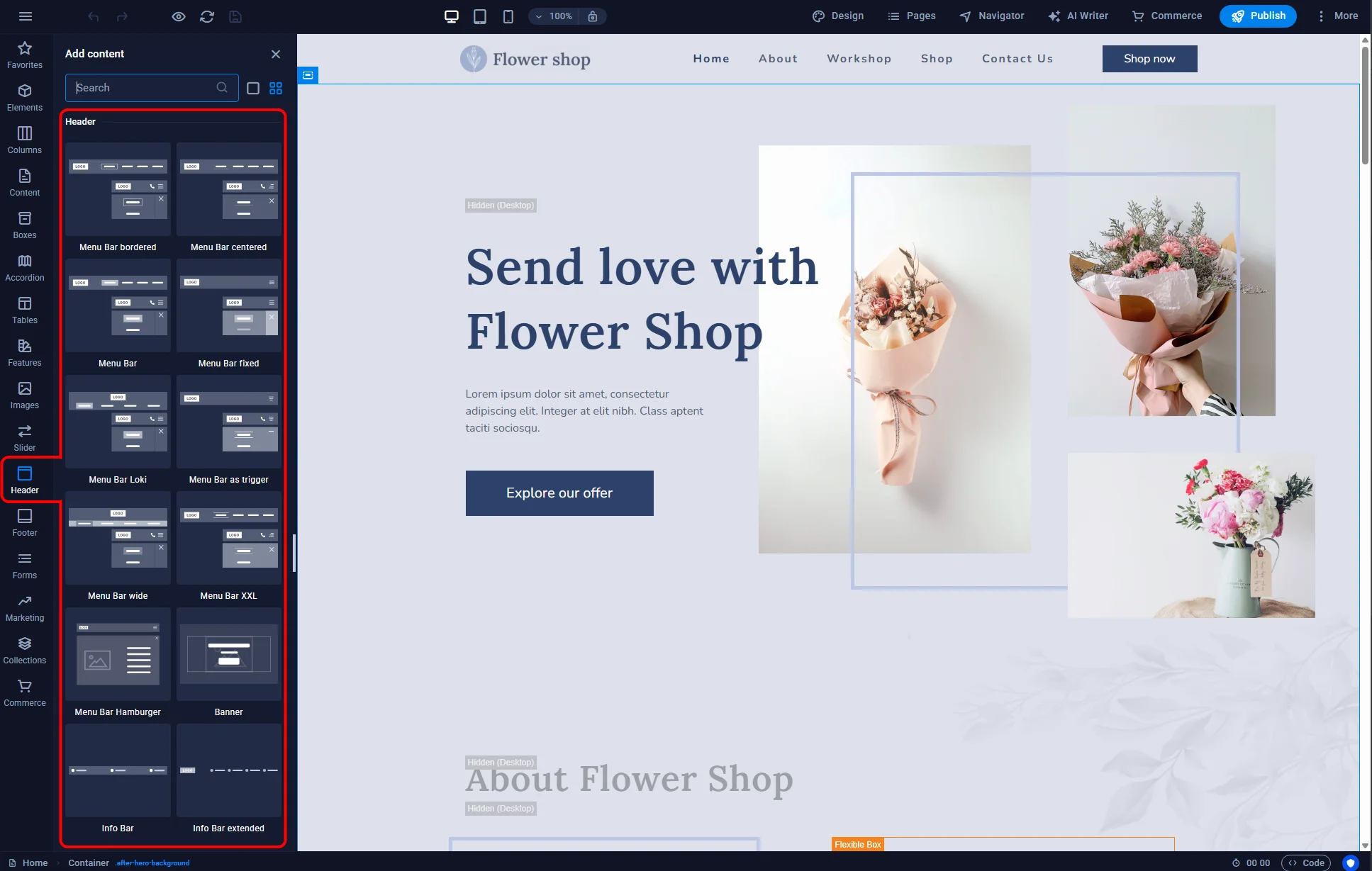
Once dropped in, the header renders with placeholder menu items that you will now configure.
¶ Auto vs Custom: which to choose
Double-click the menu element in the header to open its settings panel. At the top you will see two modes:
¶ Auto — recommended for most multi-page sites
Auto mode builds the menu automatically from the pages in your site’s Pages tab. Add a new page → it appears in the menu. Reorder pages in the Pages tab → the menu order changes to match. Delete a page → it disappears from the menu.
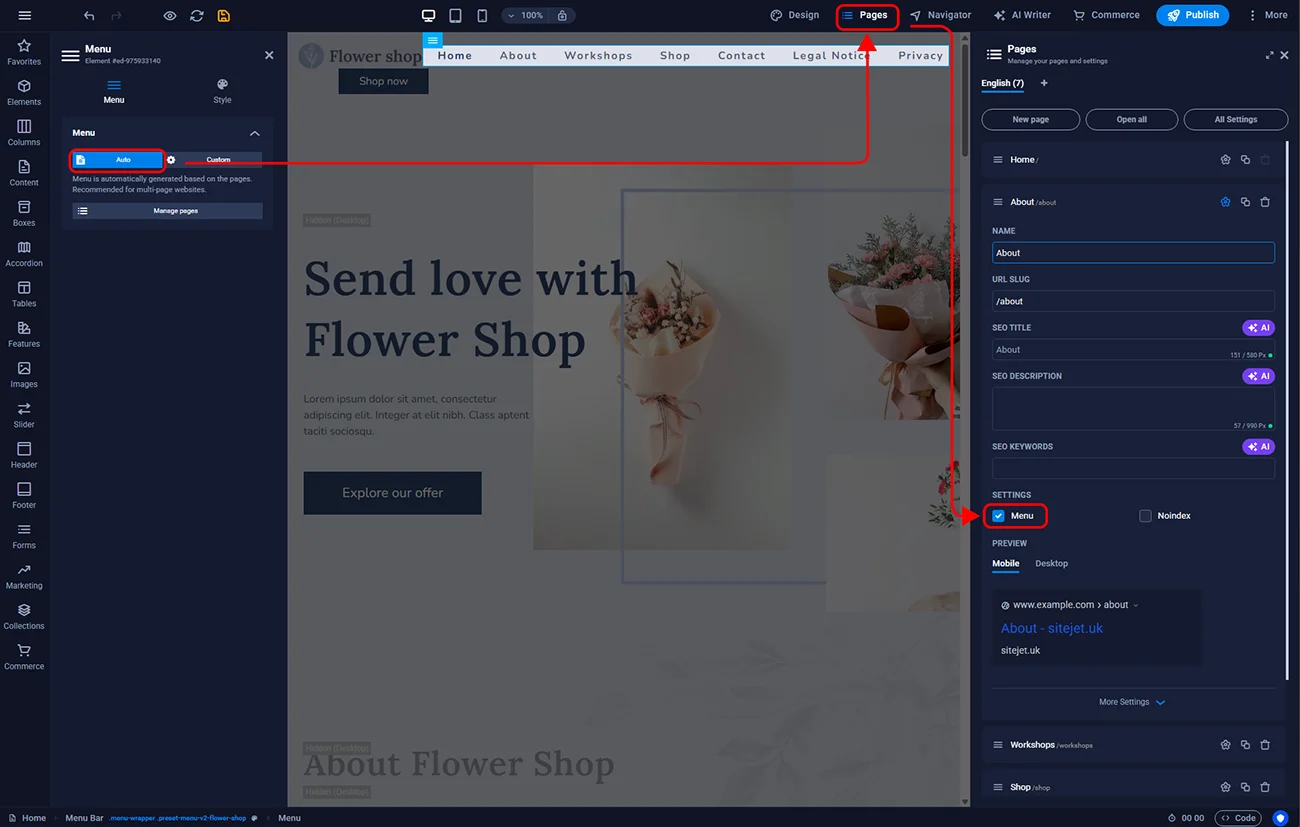
Exceptions you will want to set:
- To keep a page hidden from the menu (for example, Thank you pages after a form submission, or legal/privacy subpages), open the page settings (the cog icon next to its name in the Pages tab) and untick Menu. The page is still reachable by direct URL or link — just absent from the auto menu.
- To change order, drag pages up or down in the Pages tab.
Auto mode is fire-and-forget: it keeps the menu consistent with no extra work. For any multi-page UK small-business site (home + services + about + contact + legal), Auto is the right choice.
¶ Custom — for single-pagers and special cases
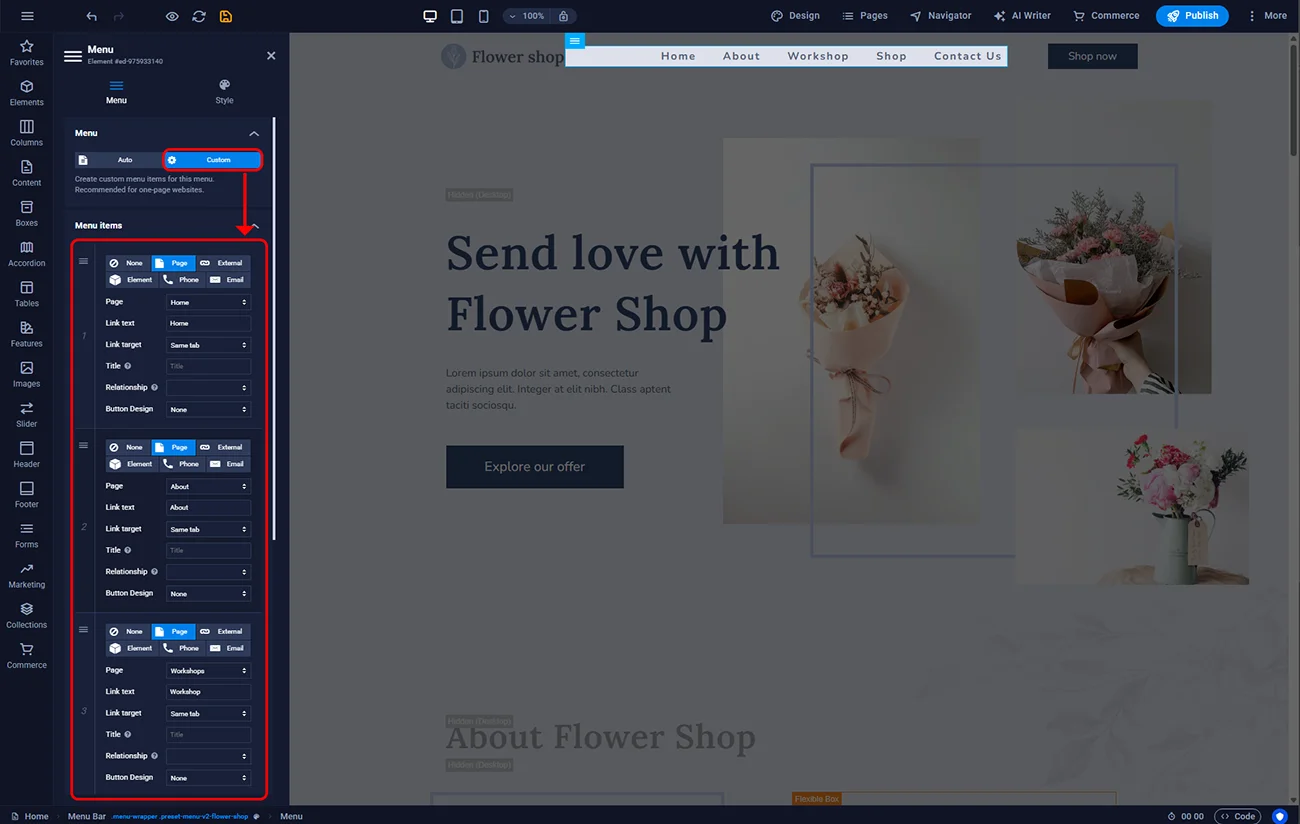
Custom mode lets you define menu items yourself:
- Hover over any item in the list, and a plus icon appears — click to add a new item
- For each item, set the label and the destination:
- An internal page
- An anchor on the current page (
#pricing,#contact) — useful for single-page sites - An external URL (for example a Facebook page)
- A phone number (
tel:) or email (mailto:)
- Hover over an item and click the bin icon to remove it
- Drag items up or down to reorder
Use Custom when your menu does not map one-to-one to pages: typically a one-pager with section anchors, or a site with a mix of internal pages and external shop links.
¶ Submenus (dropdowns)
In Custom mode, any item can have sub-items underneath. In the item settings, add Submenu items. When visitors hover over the parent, the dropdown appears.
For Auto mode, submenus appear automatically when you nest pages inside each other in the Pages tab. Drag a page under another page → it becomes a child and appears as a dropdown item under the parent.
Keep dropdowns shallow. Two levels (parent → child) is usually enough; three levels starts to feel clumsy on mobile.
¶ Styling the header
Double-click the menu element, then click the Style (paintbrush) icon. You can change:
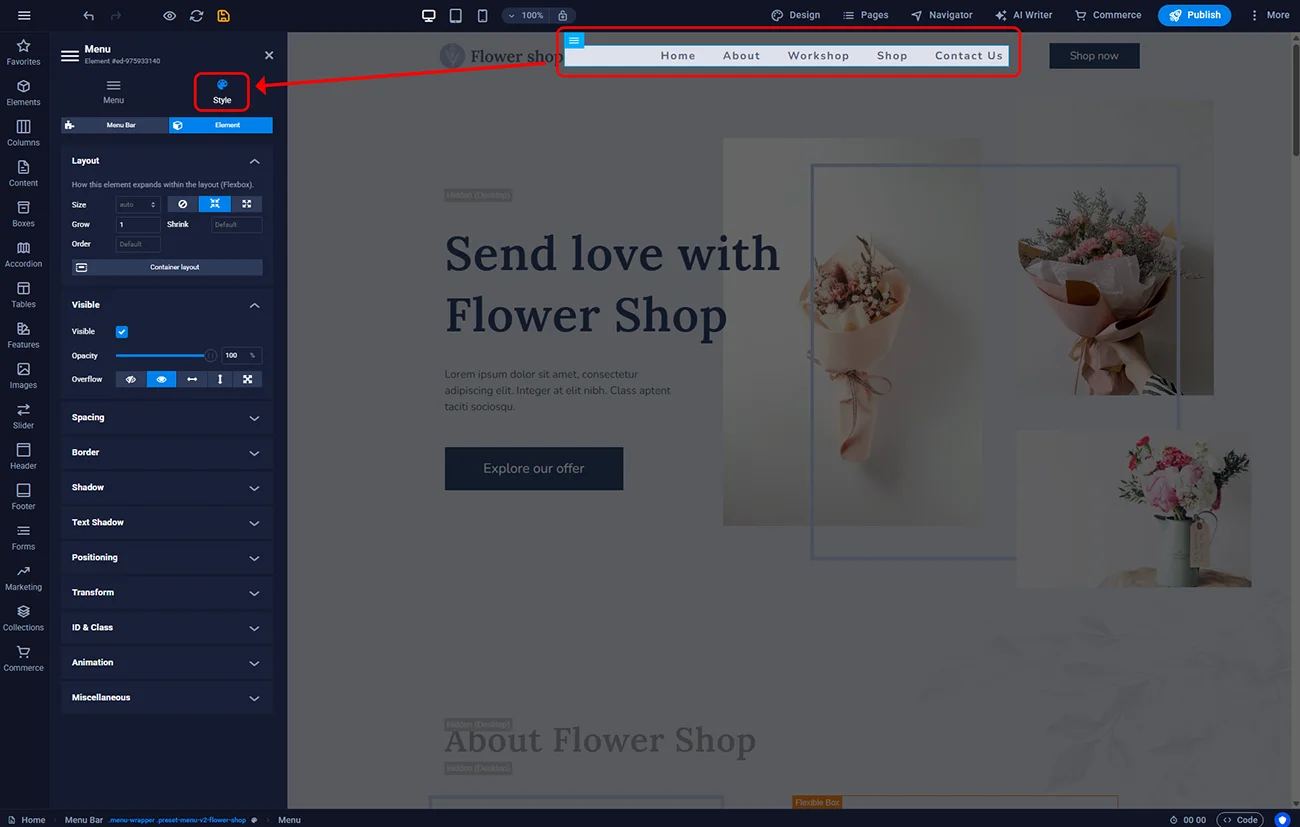
- Text colour — default, hover, active states
- Font and weight
- Item spacing and padding
- Underline or highlight on hover
- Dropdown background and border
- Transparent header over a hero banner, switching to solid on scroll
- Mobile burger icon colour and style
¶ Mobile behaviour
At narrow screen widths (below roughly 768px), the menu collapses into a burger icon. Tapping it reveals the full menu in a slide-out drawer or overlay. This behaviour is built in — you do not need to configure it separately.
Preview the mobile version by clicking the phone icon in the top toolbar of the editor. Verify that every menu item is tappable and legible at phone size — especially important because the majority of UK website visitors now browse on mobile.
¶ FAQ
Why is my new page not showing up in the Auto menu?
Check that the Menu checkbox is enabled in the page settings and that you are in Auto mode. If the page was created in a separate subfolder, it may need to be promoted to the top level to appear in the main menu.
Can I have different menus on different pages?
By default the header is shared across the site. If you need a completely different menu on a specific page (for example a landing page with only one call-to-action), remove the standard header from that page and add a bespoke one just for it.
How do I add a “Call us” button to the menu?
In Custom mode, add a menu item with a tel:+441234567890 URL and style it as a button via the item settings. On mobile it becomes a tap-to-call — very effective for trades and services.
Does the menu support icons?
Some header layouts include icon columns (basket, search, account). You can enable or disable them in the header settings. Menu items themselves are text-first; if you need menu-level icons, insert them via HTML inside the label.
Is the menu accessible?
Sitejet generates semantically correct <nav> and <ul> structures with ARIA attributes for dropdowns. Keyboard users can tab through items. For UK public-sector clients with PSBAR 2018 requirements, pair this with high-contrast colour choices and descriptive link text.
Can visitors search my site from the menu?
Sitejet does not include a built-in site search in the menu. For sites that need it, add a search widget from the Elements library or embed a third-party search service.