¶ Adding an accordion (collapsible FAQ) in Sitejet Builder
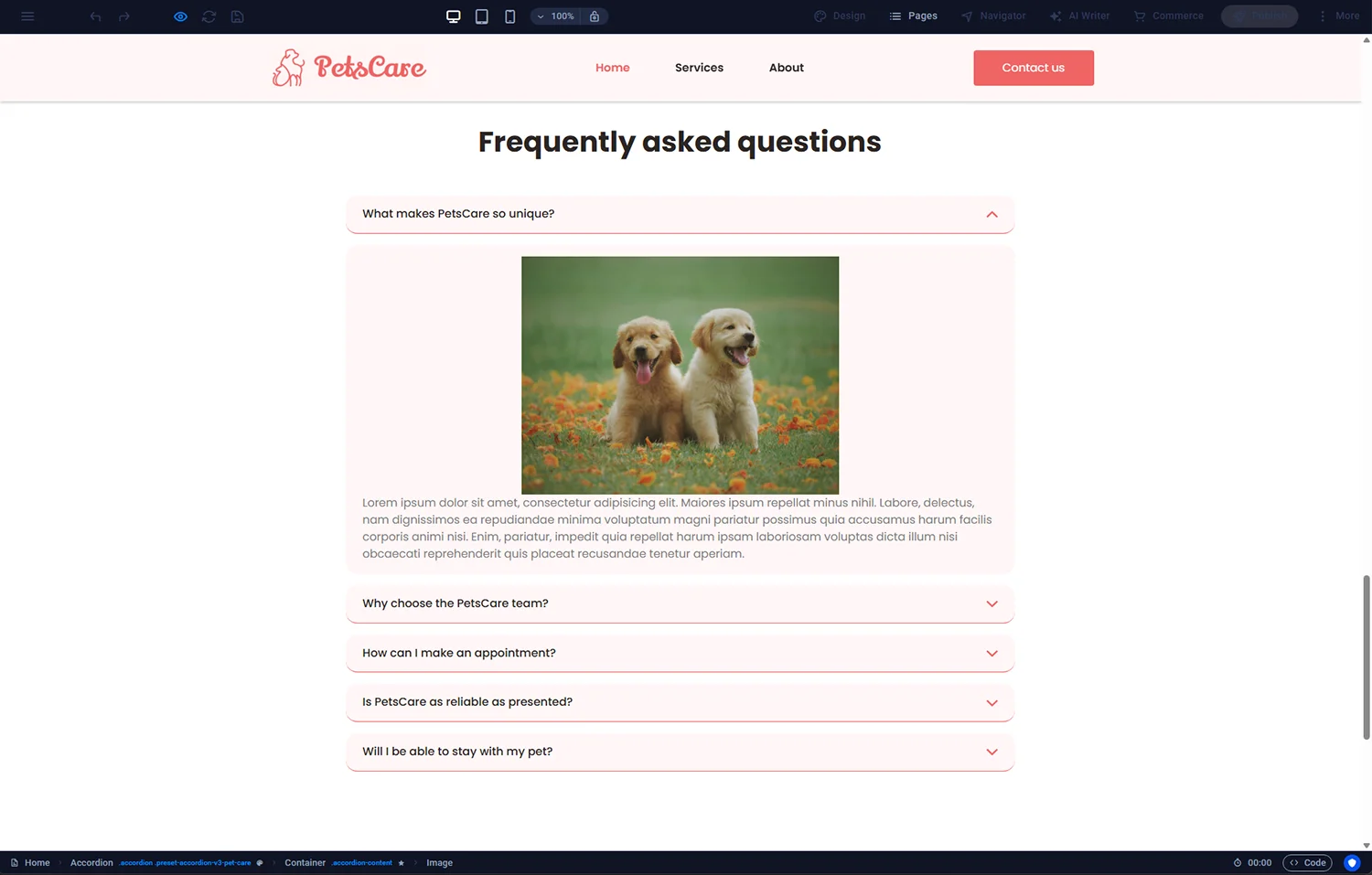
An accordion is an interactive element that shows a list of trigger items (usually questions or topics), each of which expands to reveal more content when clicked. It keeps pages compact without losing information — ideal for FAQ sections, product specification panels, or detailed service breakdowns. This guide covers adding a basic accordion, populating it, tuning animation behaviour, and using the Image Tabs variant.
¶ Adding an accordion
- Open the page in the Sitejet editor.
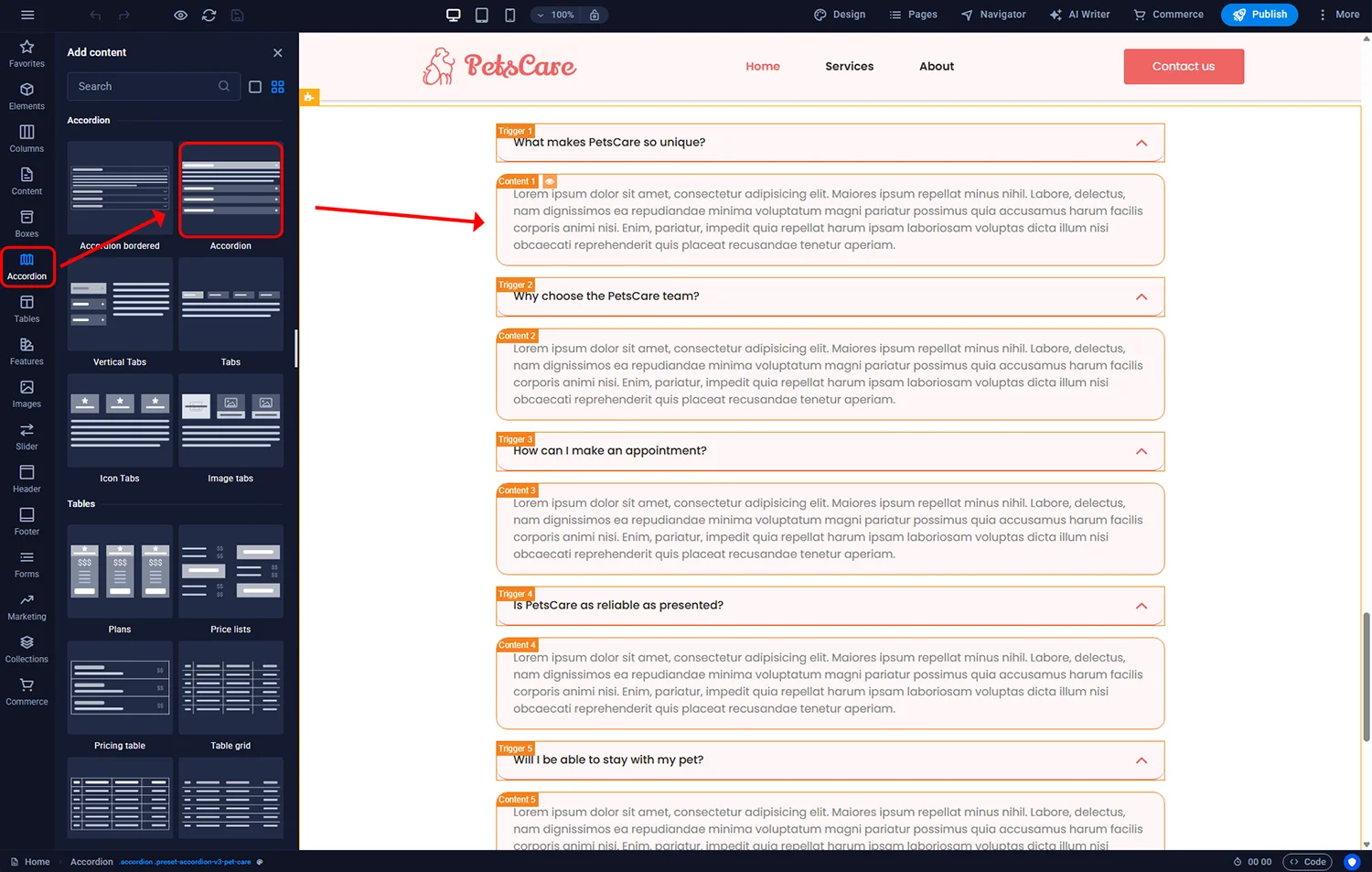
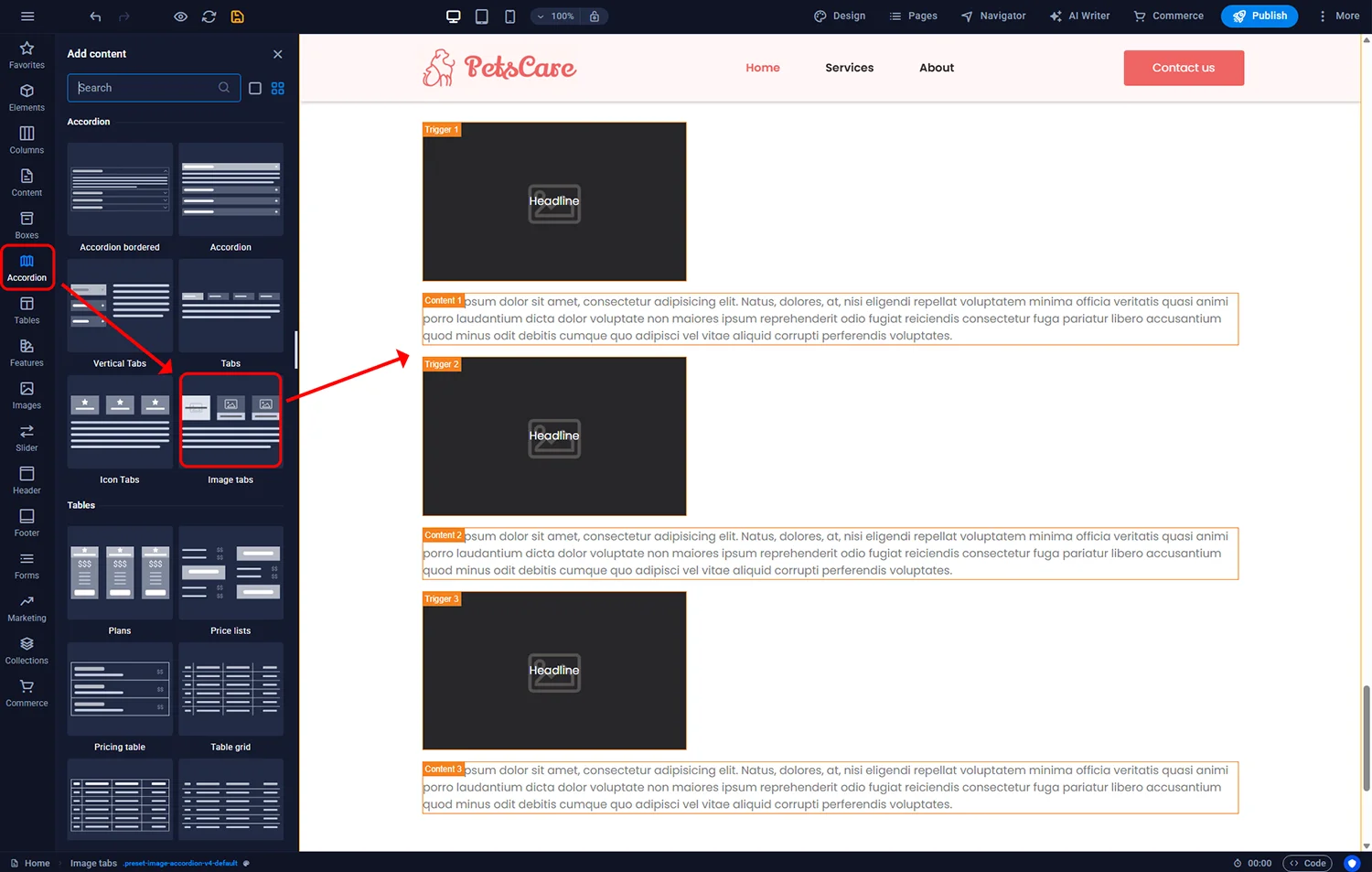
- Click the Accordion icon in the left sidebar.
- Drag the Accordion element to where it should appear.
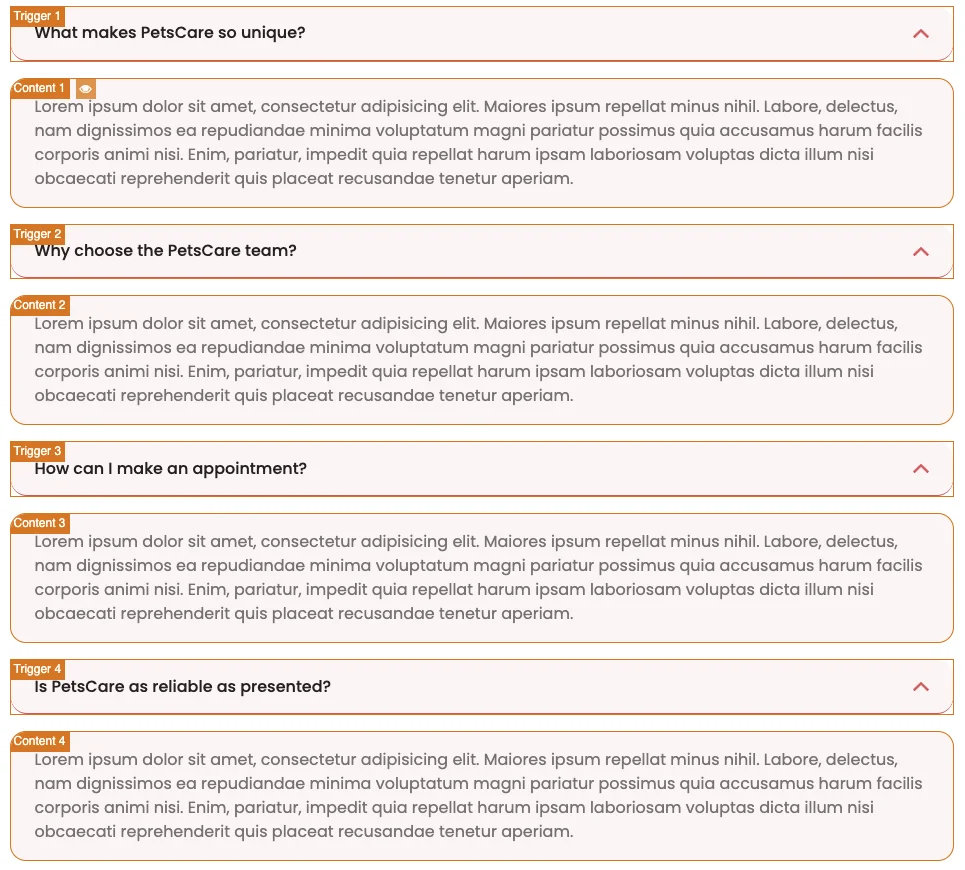
The default accordion has two parts per item:
- Trigger — the clickable button with a heading (usually the question text)
- Content — the block that reveals when the trigger is clicked
¶ Customising the trigger
Double-click the trigger to open its settings. You can change:
- The heading text — type your question or topic label
- Font, size, colour
- Icon on the right (plus/minus, chevron) that rotates when expanded
- Hover behaviour
Triggers can technically link to external URLs or files like any other heading element. In accordion context this is rarely useful — the trigger’s job is to open the content panel, not to navigate away.
¶ Populating the content
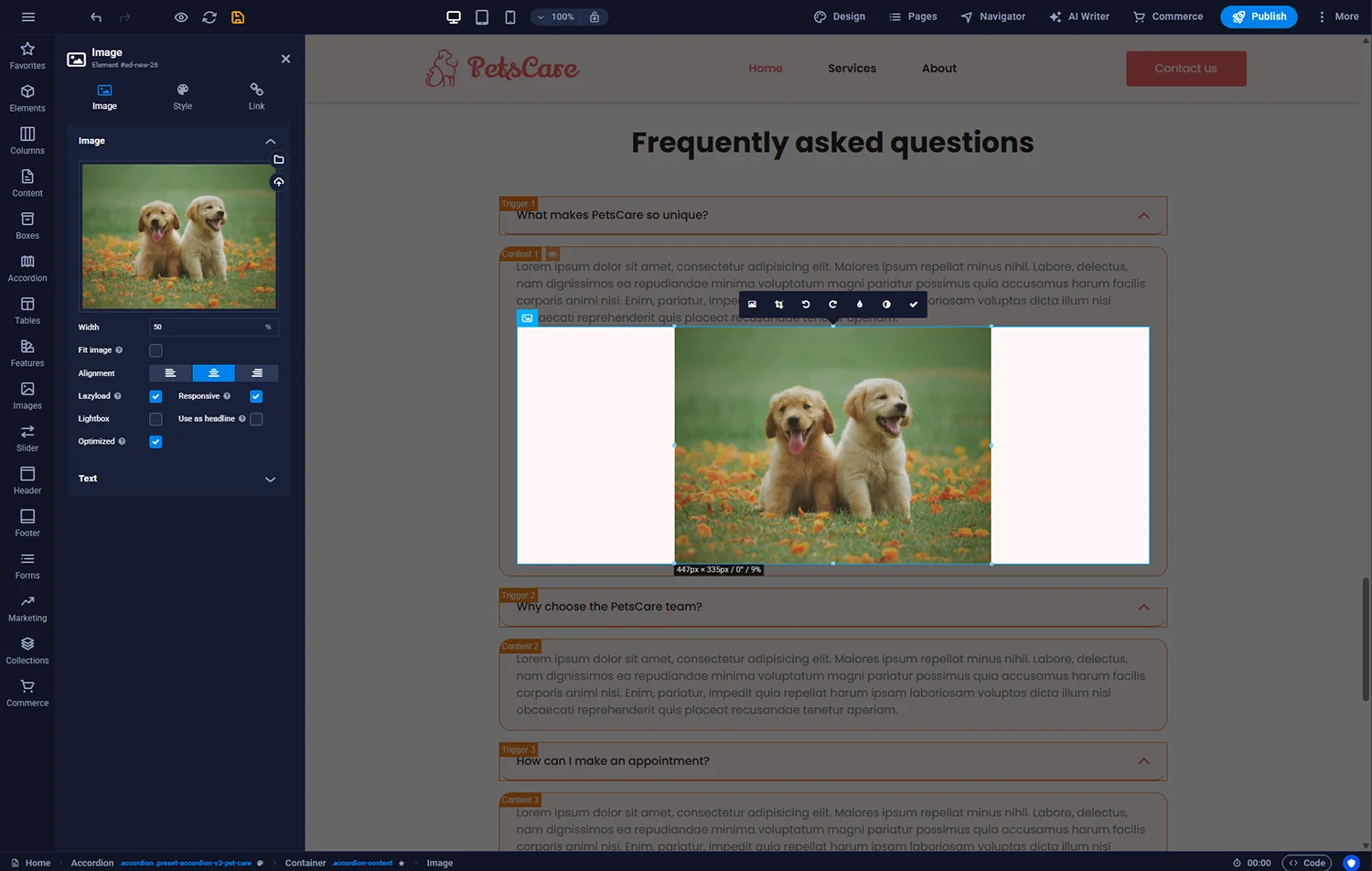
The content block accepts any element, not just text. You can include:
- Paragraph text with inline links — most common use
- Images — screenshots or diagrams
- Videos — embedded YouTube/Vimeo
- Buttons — call-to-action within the expanded content
- Tables — for technical specifications or feature comparisons
To add more accordion items, click the plus icon that appears when hovering the accordion. Each new item adds a fresh trigger+content pair.
¶ Animation settings
Accordion expansion/collapse is driven by animation on the content container. Elements with animations are marked with a star icon in the breadcrumb at the bottom of the editor. Double-click the container to tune:
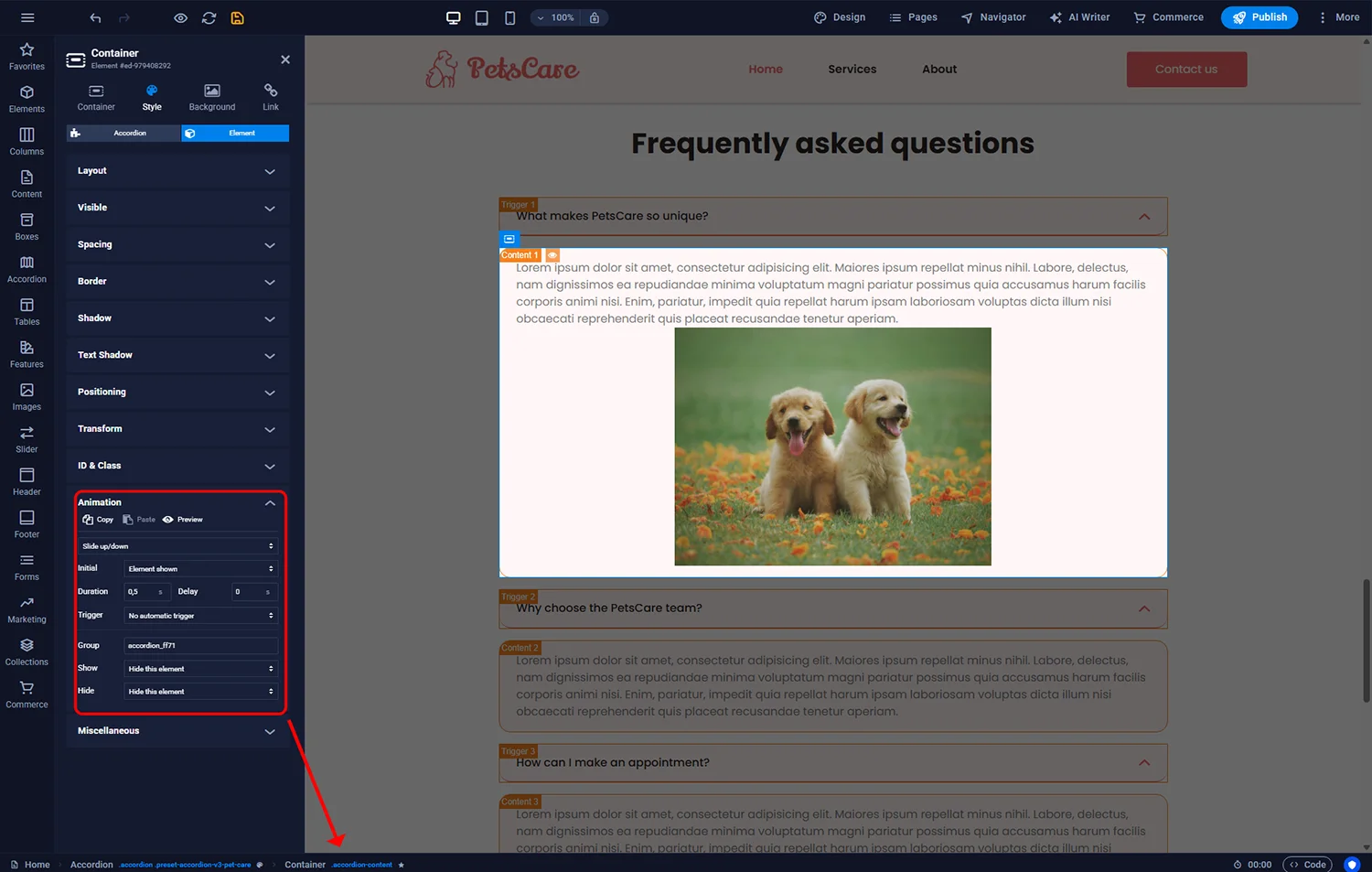
- Open method — slide, fade, or instant
- Speed — milliseconds per transition (200–400 ms feels natural)
- Initial state — Hidden element keeps content closed on page load; Visible shows the first item open by default
¶ Previewing the behaviour
The editor shows the accordion in its “editing” state with all items expanded. To see how visitors will experience it, click the eye icon in the top toolbar to toggle preview mode. Open and close items to verify the animation and content fit correctly.
¶ Image Tabs: an image-driven alternative
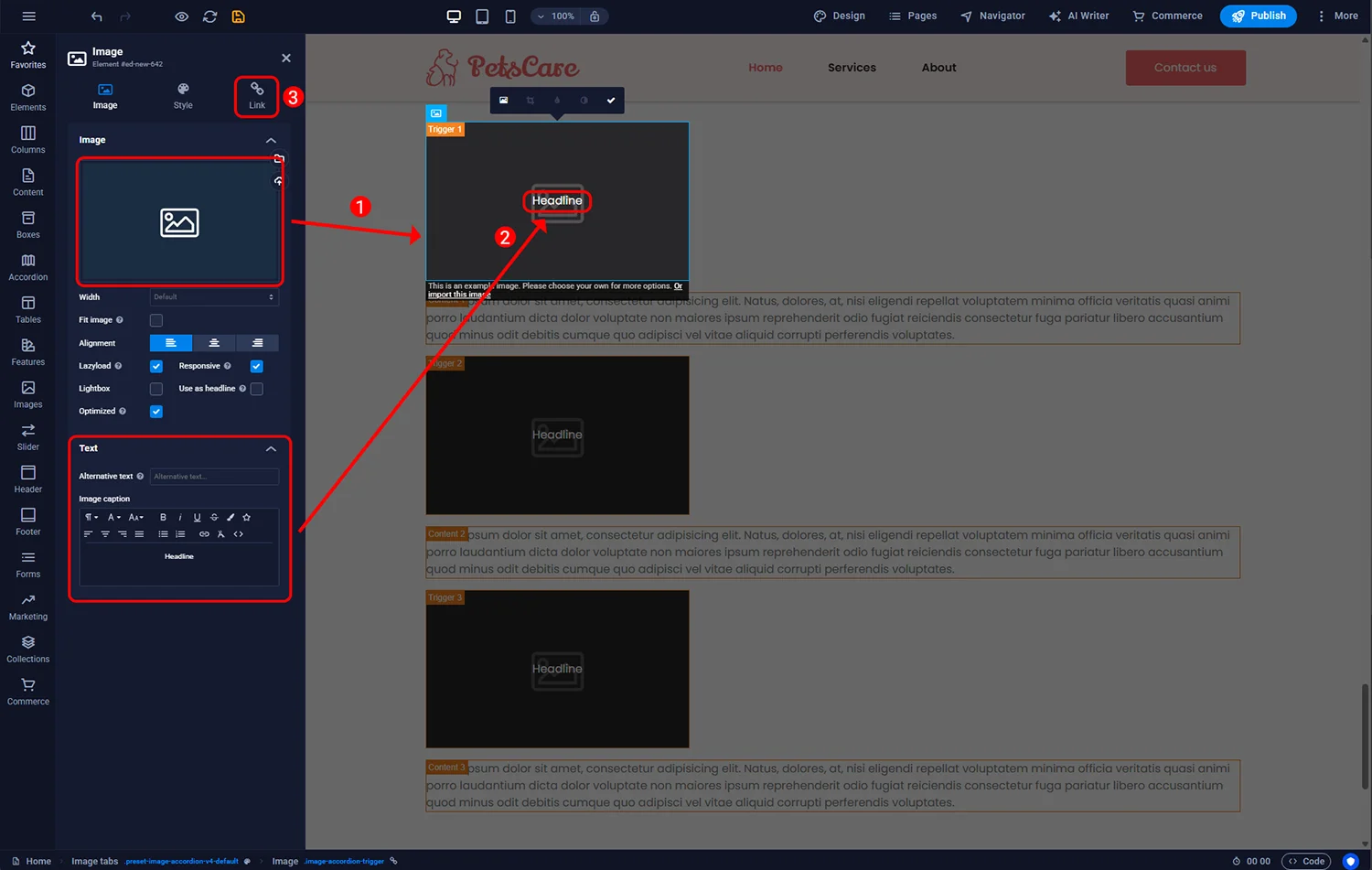
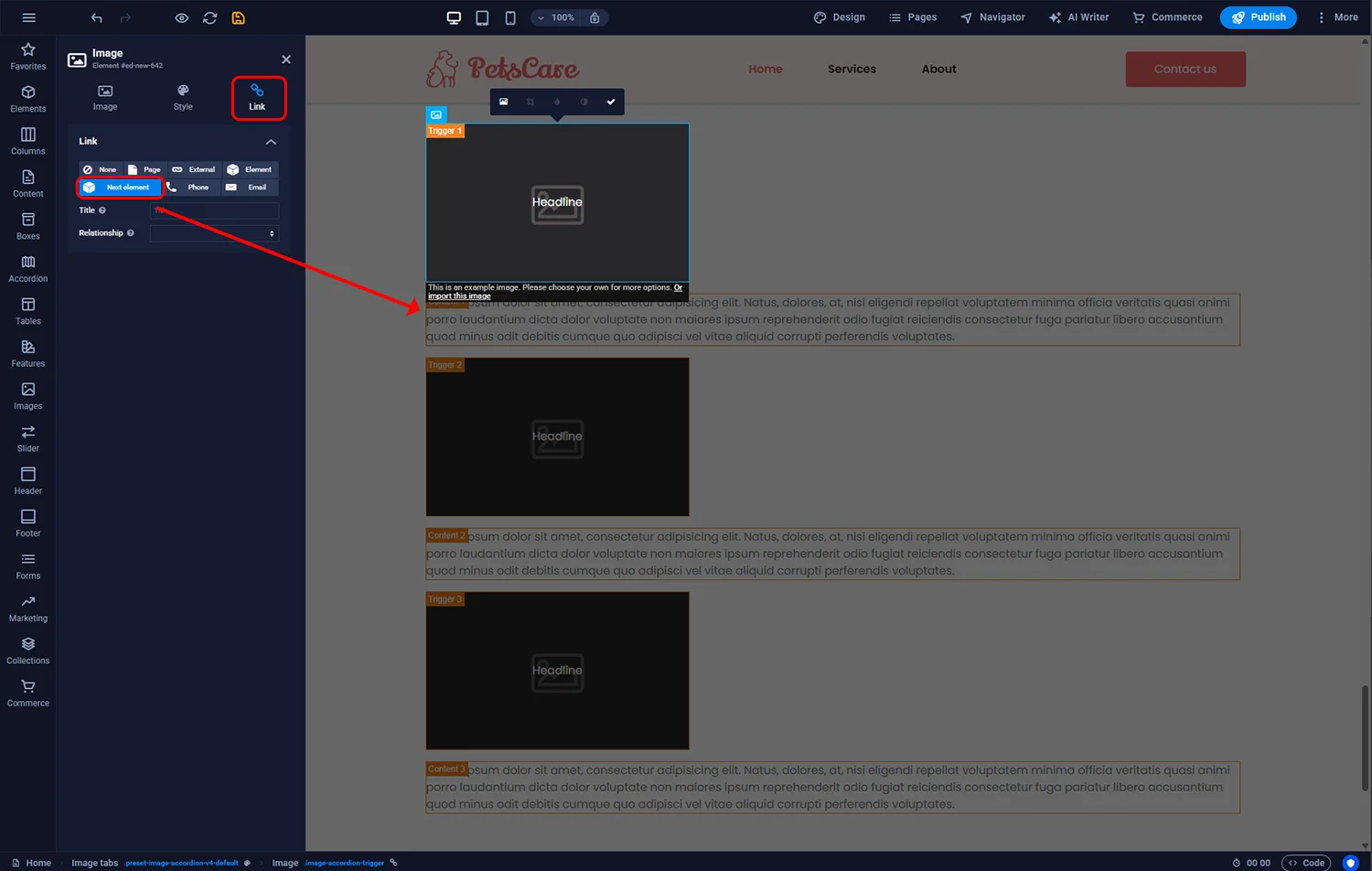
If you want an accordion-like element but with images as triggers (for a portfolio of case studies, a gallery of products, or a team directory), use Image Tabs instead. Found in the left sidebar under Elements, it drops in with a row of thumbnails that reveal full content when clicked. Content customisation works the same way as the standard accordion.
¶ Accessibility
Sitejet’s accordion renders with proper ARIA attributes (aria-expanded, aria-controls) so screen readers announce state changes correctly. For UK public-sector sites that need to meet PSBAR 2018 requirements, also check:
- Keyboard focus is visible on the trigger (Tab to move, Enter to open)
- Trigger text makes sense out of context (screen readers may read the list without the surrounding page)
- Content inside accordions is reachable with keyboard navigation
¶ FAQ
Should FAQs use accordions or be laid out flat?
For long FAQ sections (15+ items), accordions keep the page compact. For short FAQs (3–5 items) flat layout is fine — and sometimes better for SEO because content is immediately visible to crawlers.
Does Google index content inside accordions?
Yes. Modern Google crawlers execute JavaScript and see hidden content. Historically Google slightly discounted hidden content; today it is treated roughly equally to visible content.
Can I have multiple accordions on one page?
Yes. Each accordion instance is independent. You could for example have one accordion for “Services FAQ” and another for “Pricing FAQ” on the same page.
How do I make multiple items open simultaneously vs only one at a time?
Sitejet’s default accordion allows multiple items to be open. If you need strict “only one at a time”, you would need custom JavaScript beyond the standard component.
Can I anchor-link directly to an open accordion item?
Partially. You can anchor-link to the accordion container, but deep-linking to a specific opened item requires custom code. For FAQ sections where direct-linking matters, flat layout may serve you better.
Does the accordion work on mobile?
Yes, and it tends to work especially well on mobile where vertical space is scarce. Tapping triggers opens content as expected.