¶ Switching the Sitejet editor to light or dark mode
Sitejet Builder’s editor can run in three colour schemes: dark, light, or automatic (follows your browser and operating system). If you find yourself squinting at a dark panel on a bright sunny morning — or conversely want a dark editor on a late-night design session — you can force the scheme you prefer regardless of what the rest of your desktop is doing.
¶ Why you might want to override the default
By default Sitejet uses Auto mode. On most UK laptops Windows and macOS switch themes automatically at sunset (or when you flip the manual setting), and Sitejet follows. That works well for most people.
You may still want an explicit light or dark scheme if:
- You use multiple monitors with different brightness — auto detection sometimes picks the “wrong” one
- Your team shares a single account and everyone wants the same experience
- You are recording screen-share training videos and need a consistent look
- You have specific accessibility needs (for example, high-contrast working preference)
¶ How to change the scheme
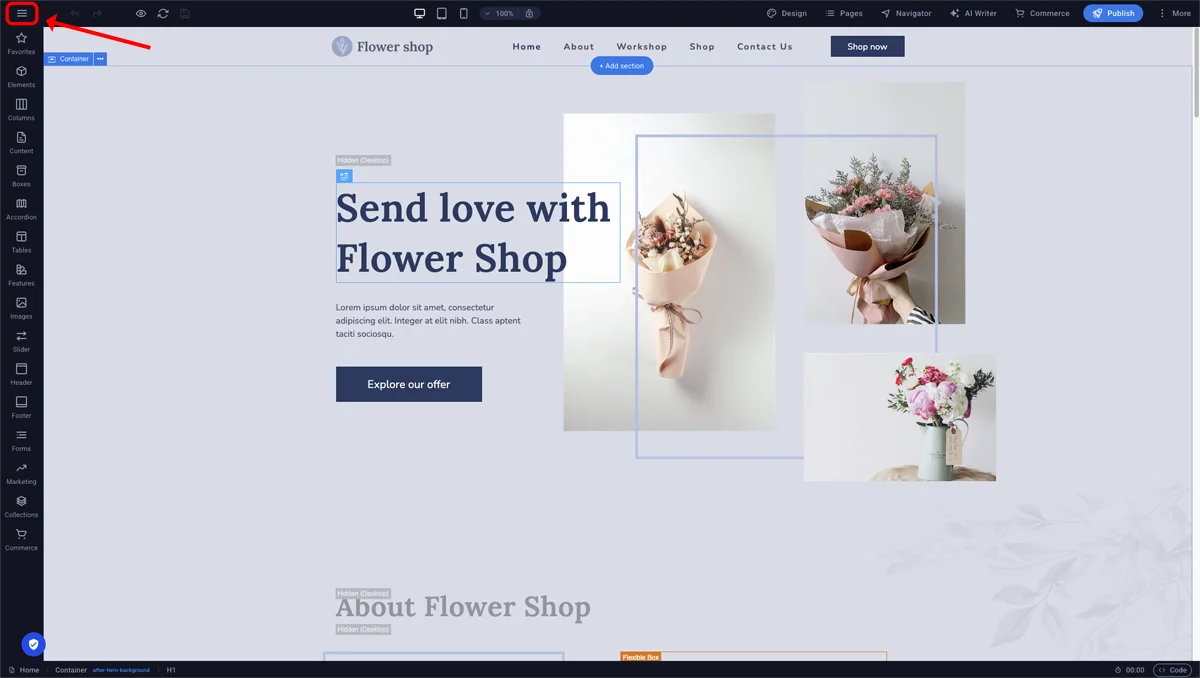
- Open the Sitejet editor from Plesk.
- Click the three-line menu icon in the top-left of the editor.
- Select Preferences.
- Find CMS Colour Scheme. The dropdown offers three options:
- Auto (default) — follows the browser/OS theme
- Dark — always dark regardless of browser setting
- Light — always light regardless of browser setting
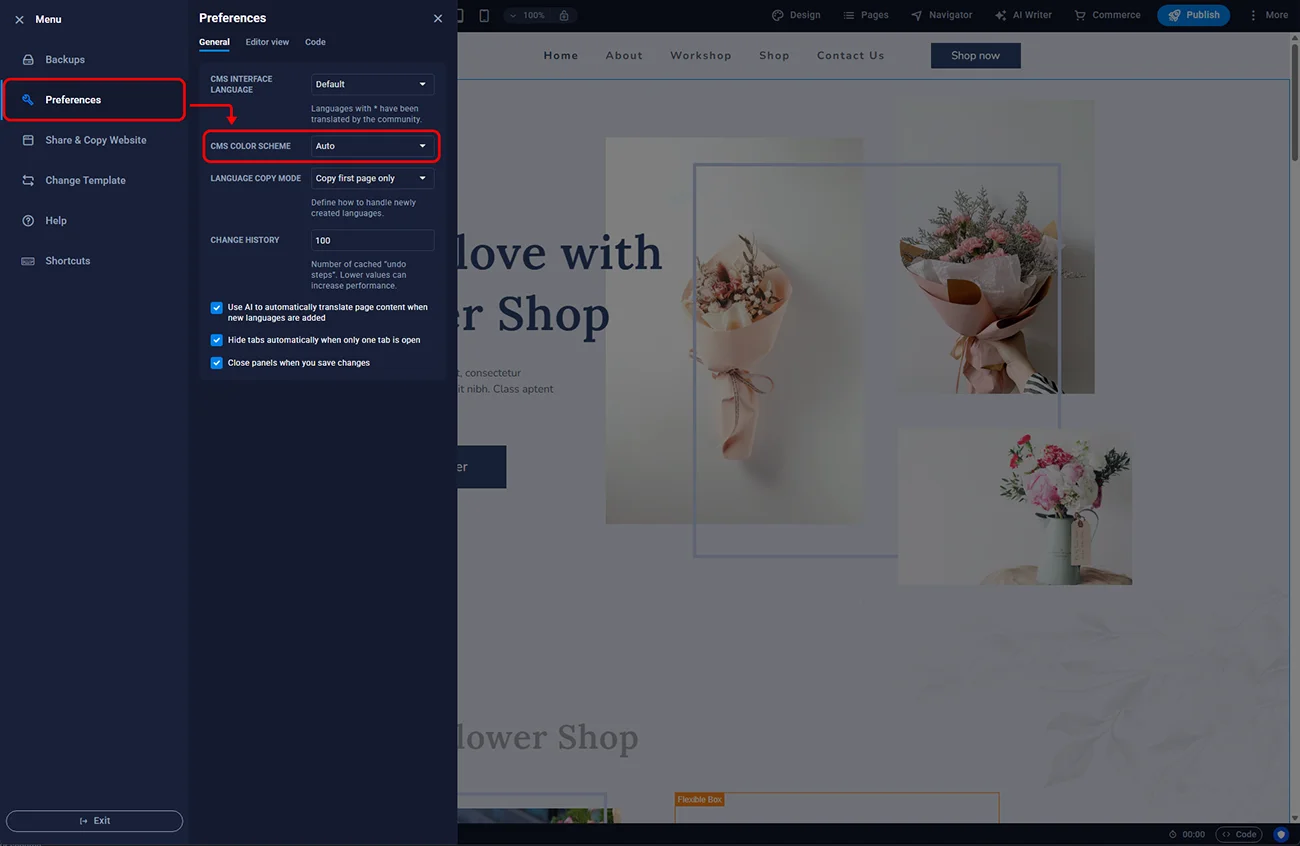
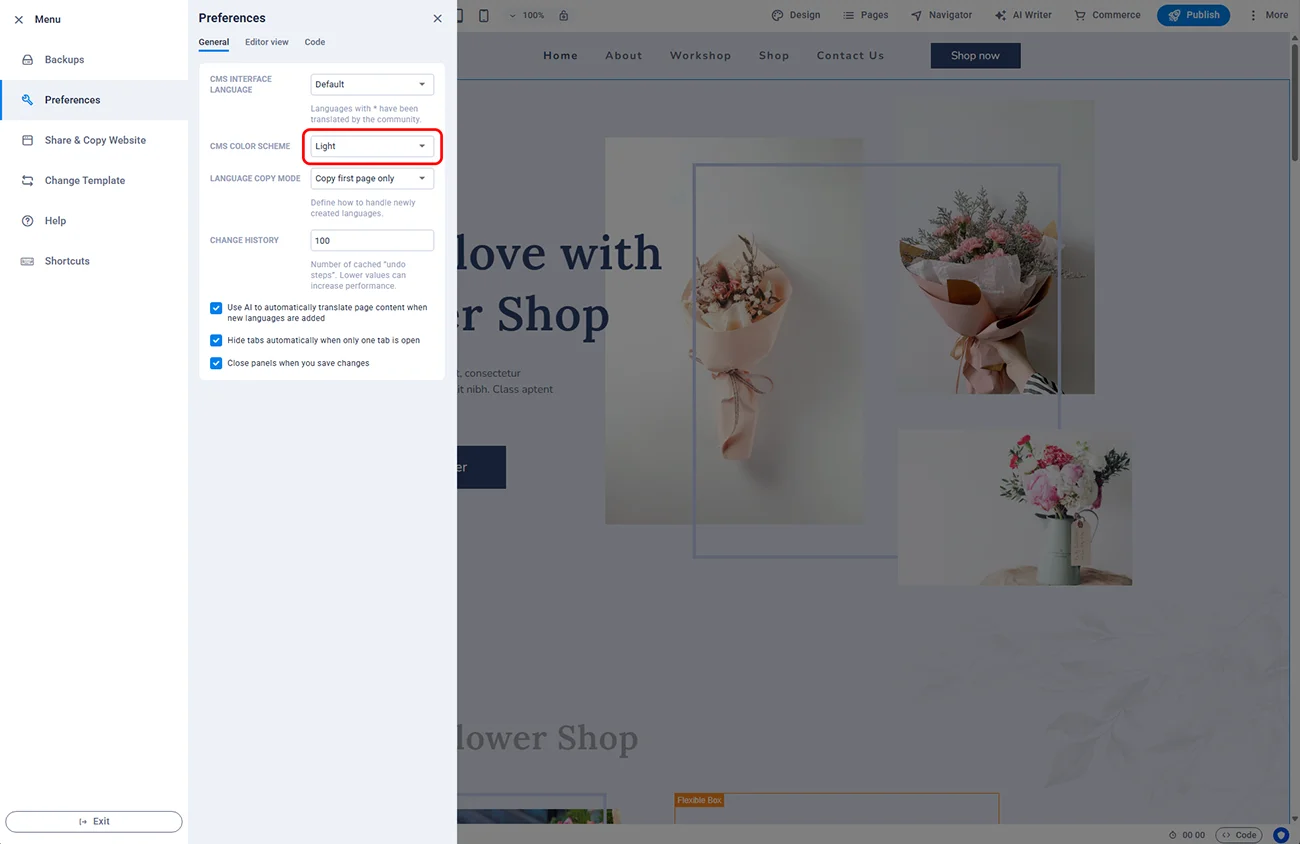
- Pick the one you want. The change is immediate — no reload required.
¶ Scope of the setting
The colour scheme is stored against your smartxhosting.uk / Sitejet account, not against a specific website. If you manage several sites under one account, every one of them will open the editor in the chosen scheme. To use different schemes for different sites, you would need separate Sitejet accounts — which in practice is rarely worth the overhead.
¶ Troubleshooting
The editor keeps flipping back to Auto. Check that you are opening Sitejet from the same smartxhosting.uk account each time — the preference is stored per-account. If you edit sites under two different accounts, each keeps its own setting.
The scheme does not apply to a specific panel. Some third-party embeds inside the editor (for example the AI content generator dialog) follow the AI provider’s own colour scheme. That is expected and cannot be overridden from Sitejet.
I want dark editor but light preview. The live preview of your website uses the template’s theme styles, not the editor colour scheme. If the template is light, the preview is light, and the editor around it can still be dark — they are independent.
¶ FAQ
Does the colour scheme affect my site’s performance?
No. It only changes the editor CSS. Your published site is unaffected.
Can I set it per-browser?
No. The setting is stored server-side against your account, so every browser you sign in from will see the same scheme.
Does Auto mode follow the UK clock for sunset?
It follows your browser’s reported colour-scheme preference, which on Windows and macOS normally switches when the OS switches. If your OS does not auto-switch, Auto will not either.
Is there a high-contrast or large-text mode?
Not in the standard colour-scheme setting. For accessibility requirements, use your operating system’s built-in accessibility tools (Windows High Contrast, macOS Increase Contrast) — they work over the top of either scheme.
Will a team member using the editor override my setting?
If they sign in under the same account, yes — the last setting saved wins. If each team member has their own account, preferences are independent.