¶ Adding and configuring a contact form in Sitejet Builder
For most UK small businesses, the contact form is how first enquiries arrive. Sitejet Builder’s form element is pre-configured with common fields and handles submission, email notification and confirmation message out of the box. This guide covers adding a form, customising fields, handling submissions and staying compliant with UK GDPR.
¶ Adding a contact form
- Open the page in the Sitejet editor.
- Click the Forms icon in the left sidebar.
- Select the Contact Form element.
- Drag it to the target position on the page.
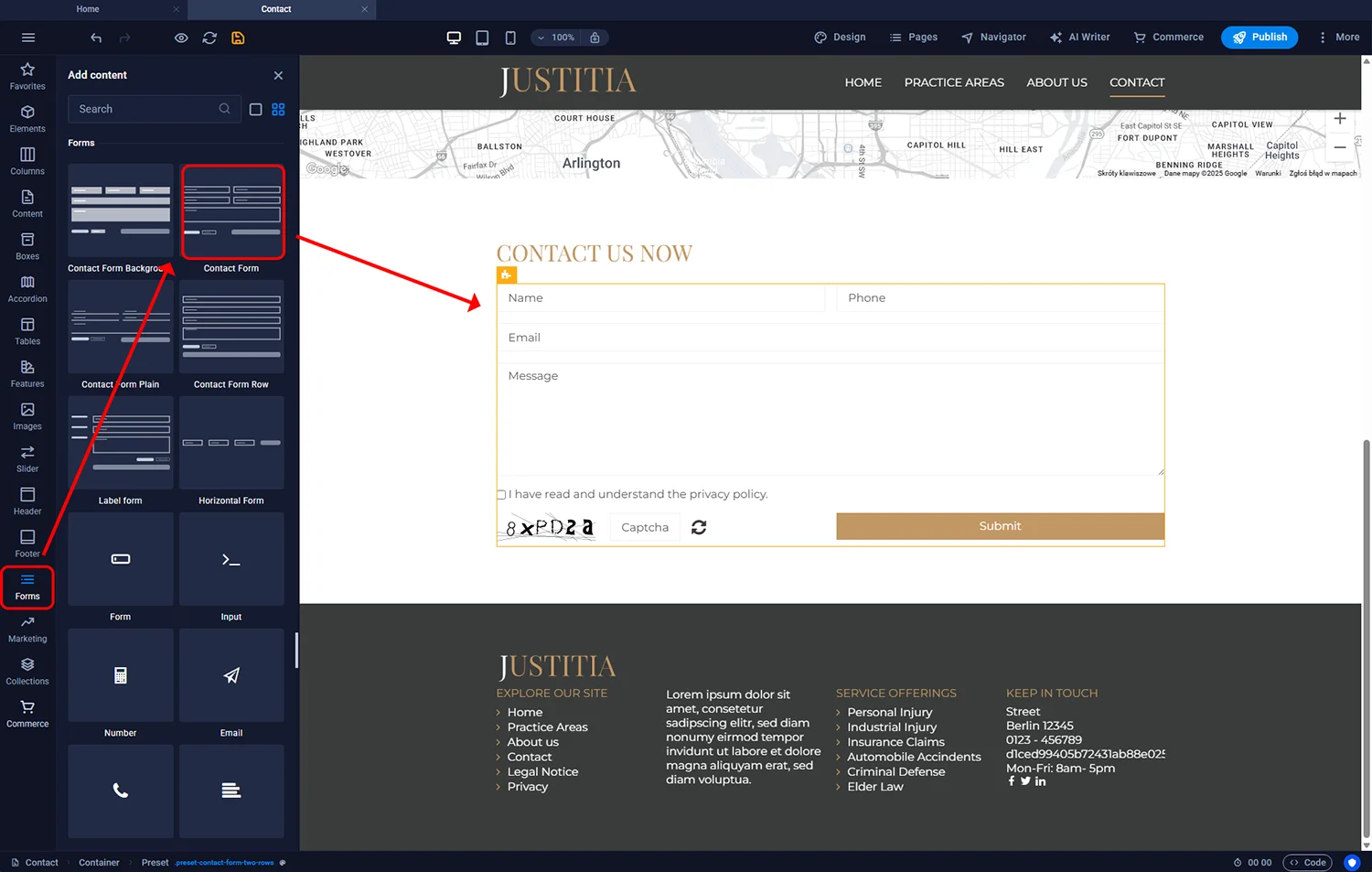
The default form ships with Name, Email, Subject, Message and a Send button — covering the minimum useful enquiry. You can extend it below.
¶ Styling the form
Double-click the form in the editor to open its settings. Open the Style tab — several ready-made appearance variants are available. Click a variant thumbnail to apply it. Typical differences: inline fields vs stacked fields, rounded vs square inputs, dark-mode or light-mode styling.
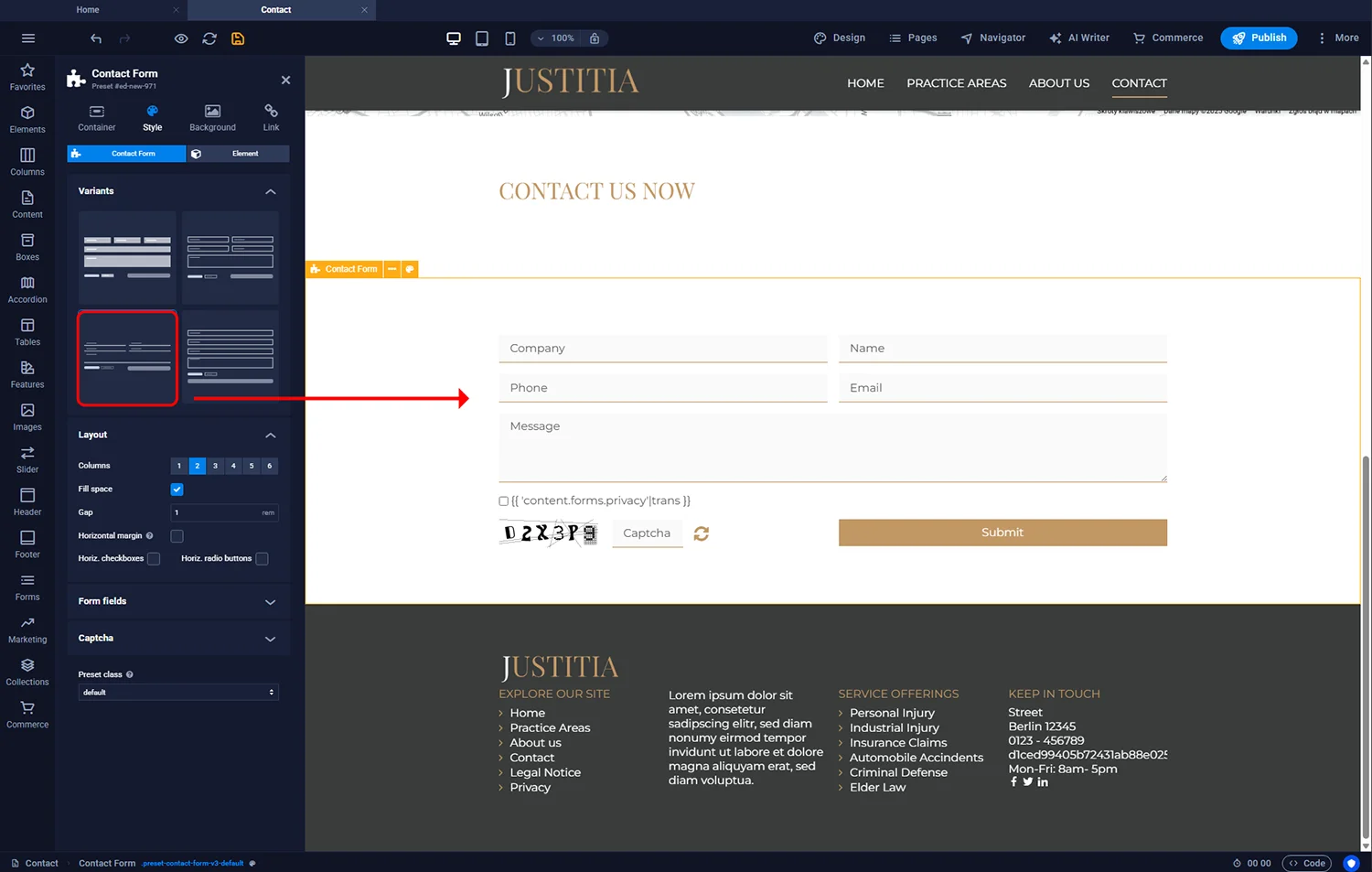
For finer control — label colours, field spacing, focus ring, placeholder text styling — use the CSS controls in the left sidebar after selecting individual fields.
¶ Adding, removing and configuring fields
¶ Add a new field
In the left sidebar, click Forms and drag a field type into the form:
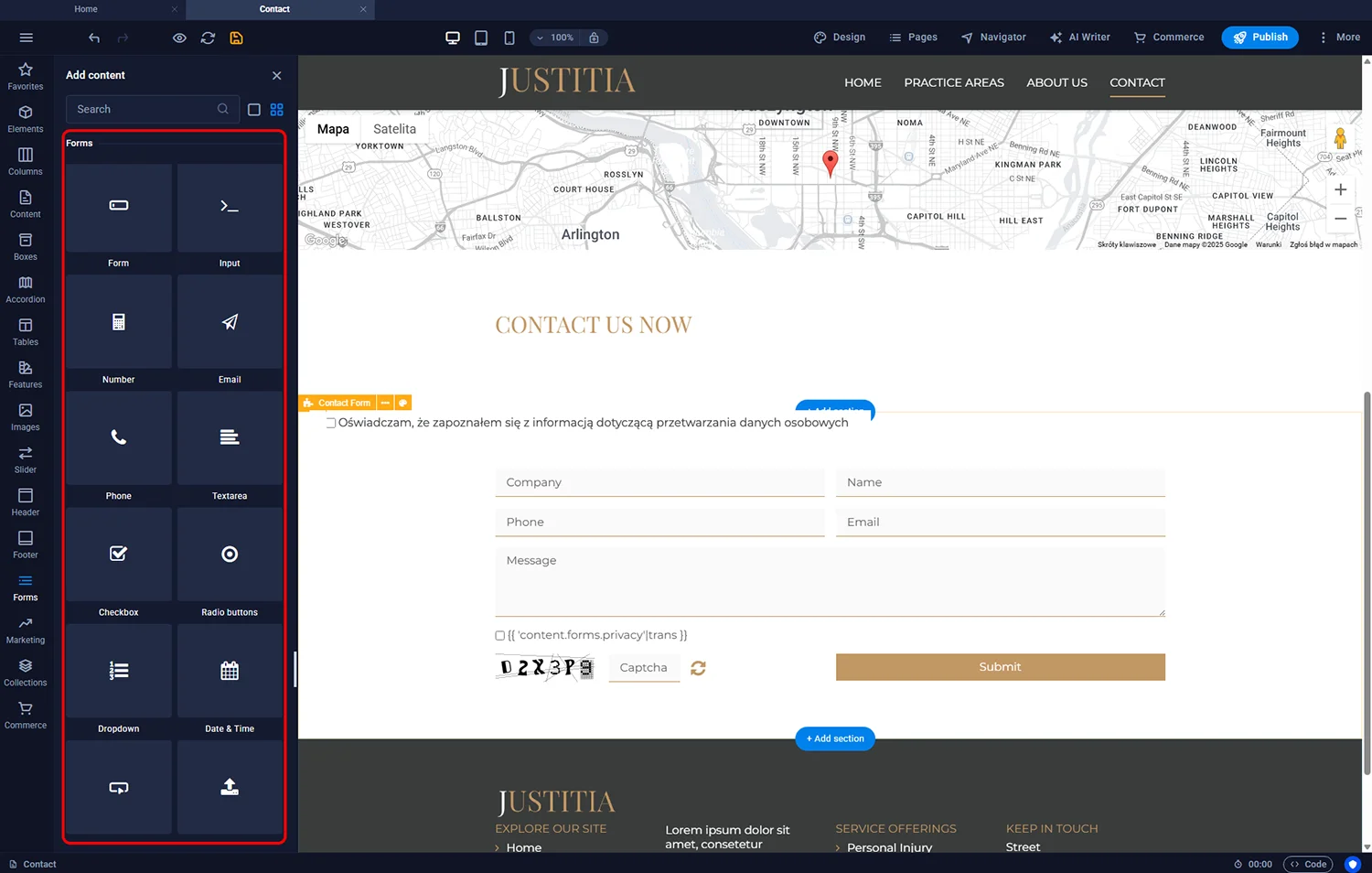
- Text input — short answers (name, company name)
- Textarea — long messages
- Email — validated as an email address
- Phone — accepts phone number formats
- Dropdown (select) — one choice from a list (for example “How did you hear about us?”)
- Checkboxes — multiple choices (for example interests, services of interest)
- Radio buttons — one choice from a list shown upfront
- File upload — for quote requests where users attach photos or documents
- Consent checkbox — for UK GDPR privacy notice acknowledgement (see below)
¶ Configure a field
Double-click the field label to open its settings. Typical options:
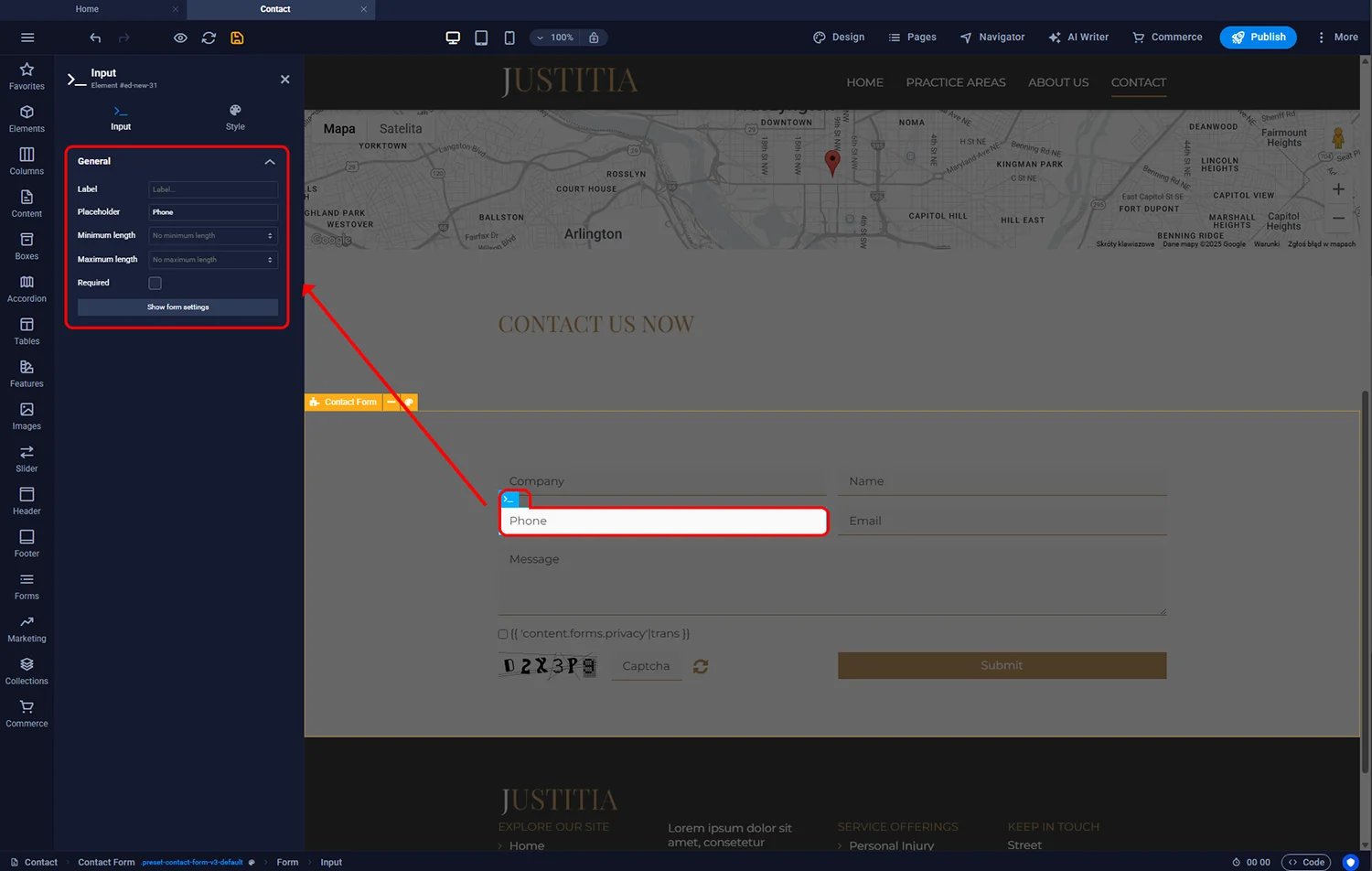
- Field name (displayed label)
- Placeholder text
- Required / optional
- Default value
- For dropdown/radio/checkboxes: the list of choices
- Validation pattern (for advanced cases)
¶ Submission settings
Double-click the form container and expand the submission configuration. Three sections matter:
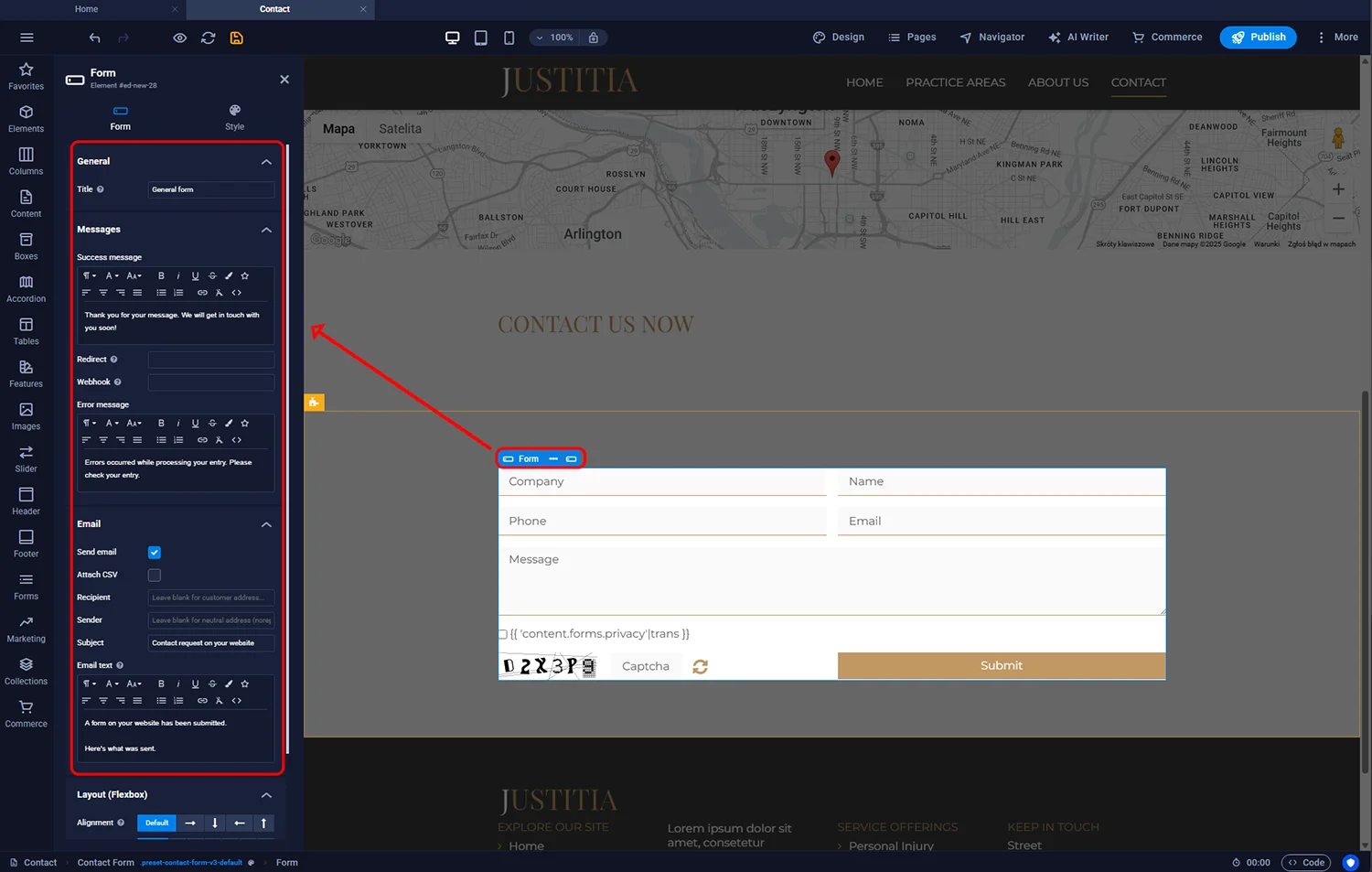
¶ General
- Title — an internal name (shows up in emails so you know which form was submitted, if you have several)
¶ Messages
- Success message — what the visitor sees after submitting successfully (“Thanks — we’ll be in touch within 24 hours.”)
- Error message — shown if submission fails (rare, typically network issue)
- Redirect — optional: send the visitor to a dedicated thank-you page after submission. Useful for analytics tracking (conversion goal fires on that page).
- Webhook — advanced: an HTTP URL that receives the form data as JSON for integration with external systems (for example your CRM or a Zapier webhook).
- Send email — tick to receive notifications whenever a form is submitted
- Recipient — the email address that receives the enquiry
- Attach CSV file — includes a CSV attachment with all form field values; useful for structured data
¶ UK GDPR and forms
When a form collects personal data (name, email, phone, message content), you trigger UK GDPR obligations. Minimum compliance:
- Privacy notice — your site must have an accessible privacy policy explaining what data you collect, why, how long you keep it, and the lawful basis. Link to it from the form submission area.
- Consent where required — if you plan to use the data for marketing (newsletter, promotional emails), add a consent checkbox above the submit button. It must be opt-in (unticked by default) and separate from other actions.
- Lawful basis — for contact-form-to-respond use cases, the lawful basis is usually “legitimate interest” (responding to an enquiry) or “performance of a contract” (if the enquiry leads to a quote). You do not need a consent tick for these; you do need to explain them in your privacy notice.
- Retention — keep submissions only as long as genuinely needed. Delete old enquiries that have not become customers.
¶ Reducing spam
Public contact forms attract automated spam. Options:
- Hidden honeypot field — Sitejet includes a basic anti-spam measure by default
- Google reCAPTCHA v3 — silent, no user interaction; add via advanced form settings if spam volume is high
- Email delivery rules — route form emails to a folder you review daily rather than the main inbox
¶ FAQ
Where do form submissions go?
To the email address you configured in the form settings. Additionally, Sitejet stores the submission data for access via Plesk or via webhook to an external system.
Can I have multiple forms on one page?
Yes. Each form is independent — set its own Title to distinguish submissions in your inbox.
What if emails are not arriving?
Check your spam folder first — notification emails sometimes land there. If genuinely missing, verify the recipient address in settings, and ensure your domain has correct email authentication (SPF, DKIM, DMARC) configured on your smartxhosting.uk email.
Can the form auto-reply to the visitor?
Yes — enable the auto-reply option in the form’s email settings. The visitor receives an immediate confirmation without you manually writing one each time.
Should I require a phone number?
Only if you genuinely need it. Every required field reduces submission rate. For most contact forms, email is enough — offer phone as optional.
Can I integrate with my CRM?
Yes, via the webhook option. Point the webhook at your CRM’s inbound webhook URL (or a Zapier/Make.com hook that forwards). Submissions flow into the CRM automatically.